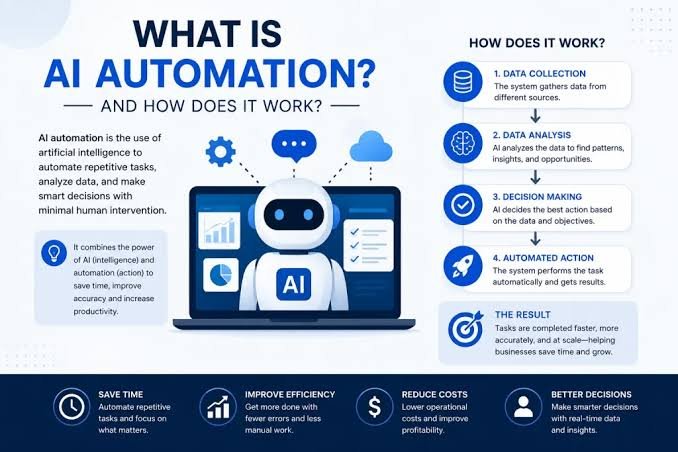
AI & Productivity: Complete Beginner’s Guide.
Everything you need to know to start using AI to save time, reduce busywork, and work smarter even if you’ve never used an AI tool before.
2.5h
Average time saved per day using AI tools
77%
Of professionals say AI reduces busywork significantly
40%
Faster task completion reported by AI users
1 week
Average time to see real productivity gains
If you’ve heard everyone talking about AI at work but aren’t sure where to start this guide is for you. In the next 14 minutes, you’ll understand exactly what AI productivity tools are, how they work, which ones are worth your time, and how to use them without feeling overwhelmed.
The good news: you don’t need to be technical. You don’t need to know how AI works under the hood. You just need to understand what to ask it to do and that’s exactly what this guide teaches.
1. What Is AI Productivity?
AI productivity means using artificial intelligence tools to get more done in less time — without sacrificing quality. These tools use large language models (LLMs) to understand your instructions in plain English and help you write, research, plan, summarize, and automate faster than you ever could alone.
Think of an AI productivity tool like a highly capable assistant who never gets tired, never needs a coffee break, and can draft your emails while you’re in a meeting. It’s not magic — it’s software trained on enormous amounts of text that can predict and generate useful responses based on what you ask.
AI productivity vs. traditional productivity tools
Traditional tools like calendars, to-do apps, and document editors help you organize work. AI tools help you do the work faster. They’re not replacements for each other — they work best together.
ℹ What counts as an AI productivity tool?
Any software that uses AI to help you complete tasks faster. This includes chatbots (ChatGPT, Claude), AI writing assistants (Grammarly, Jasper), AI meeting tools (Otter.ai, Fireflies), AI automation (Zapier AI), and AI built into apps you already use (Notion AI, Microsoft Copilot, Google Workspace AI).
→Related Guide
How AI Tools Save Time at Work (Real Examples + Data)
2. How AI Actually Saves Time at Work
The biggest misconception beginners have is thinking AI is only useful for writing. In reality, AI can handle any repetitive, language-based task — and that covers more of your workday than you might expect.

Here are the five core ways AI saves time for knowledge workers:
- Drafting and writing: First drafts of emails, reports, proposals, and social posts take minutes instead of hours.
- Summarizing: Paste in a 40-page PDF, a long email chain, or a meeting transcript — and get a crisp summary in seconds.
- Research and information retrieval: Instead of browsing 12 tabs, ask AI to compile what you need with context.
- Planning and brainstorming: AI generates agendas, project plans, content ideas, and outlines on demand.
- Automation: Tools like Zapier AI and Make.com connect your apps and run repetitive workflows without you touching them.
“People who use AI assistance complete tasks 37% faster on average, and report higher quality output than those working without it.”— Nielsen Norman Group, 2024 AI Productivity Study
✓ Pro Tip
Start by timing how long your most repetitive tasks take each week. Email replies, meeting prep, status updates — track these for 3 days. Then test using AI on each one. Most people find 60–70% of those tasks can be done in half the time.
3. Best AI Productivity Tools for Beginners (2025)
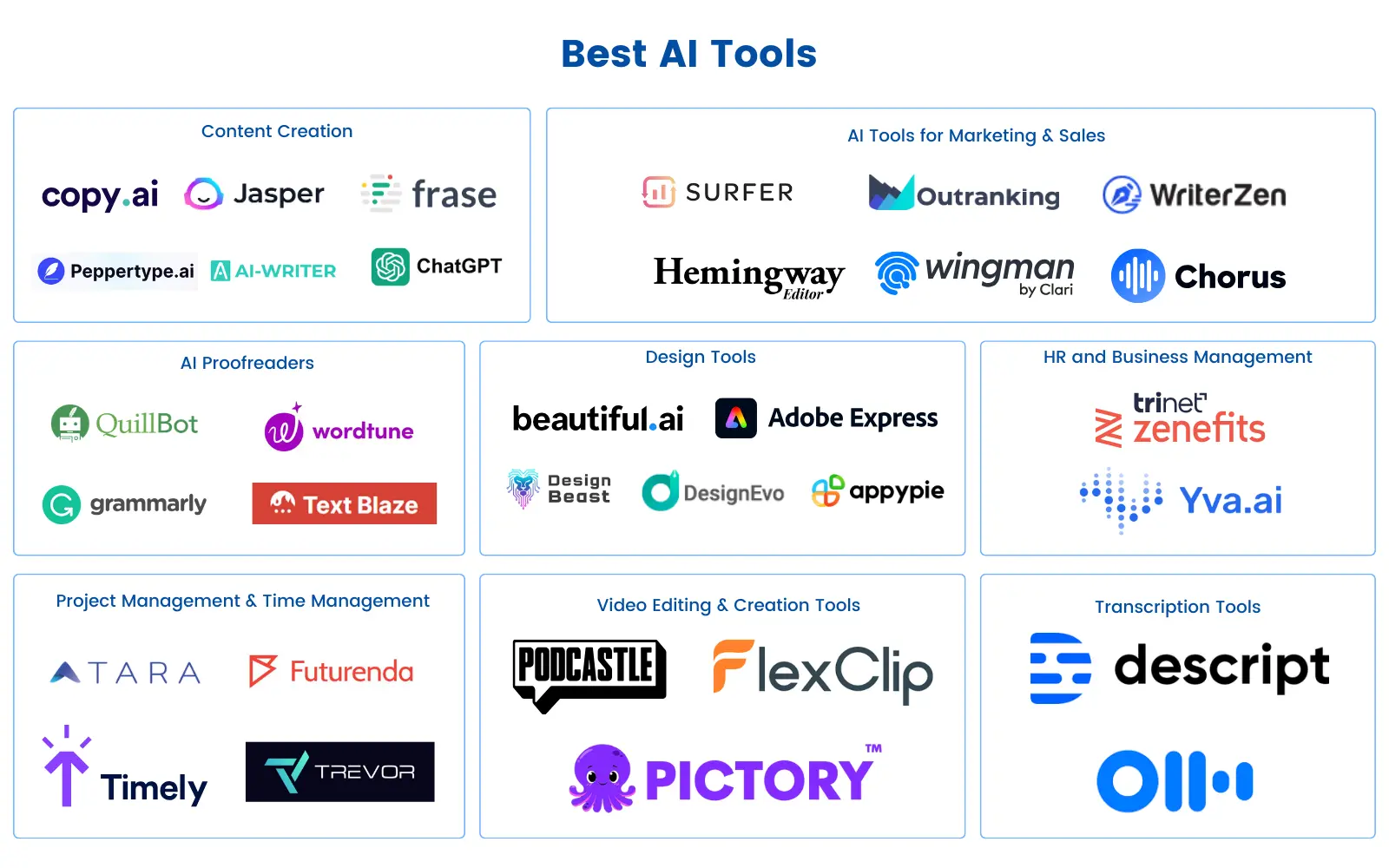
With hundreds of AI tools launching every month, choosing where to start is overwhelming. Here’s a curated shortlist — the best beginner-friendly options across the most common work categories.
| Tool | Best For | Pricing | Skill Level |
|---|---|---|---|
| ChatGPT | Writing, research, Q&A, coding help | Freemium | Beginner |
| Claude (Anthropic) | Long documents, nuanced writing, analysis | Freemium | Beginner |
| Notion AI | Note-taking, project management, summaries | Paid Add-on | Beginner |
| Grammarly | Writing polish, tone adjustment, proofreading | Freemium | Beginner |
| Otter.ai | Meeting transcription, notes, action items | Freemium | Beginner |
| Microsoft Copilot | Word, Excel, Outlook, Teams integration | Paid | Beginner–Mid |
| Zapier AI | Workflow automation, app connections | Freemium | Intermediate |
| Perplexity AI | Real-time research with cited sources | Freemium | Beginner |
✓ Where to Start
Start with just one tool: ChatGPT or Claude. Both are free, work in plain English, and cover 80% of beginner use cases. Once you’re comfortable, layer in specialized tools for meetings, writing, or automation.
→Related Guide
How AI Tools Save Time at Work (Real Examples + Data)
4. How to Get Started: A 5-Step Plan for Beginners
The biggest reason people don’t see results with AI is starting too broadly. Follow this step-by-step plan to build your AI productivity system the right way.
Pick one tool and create a free account
Go to chat.openai.com (ChatGPT) or claude.ai and sign up for free. Don’t overthink this — both are excellent. The goal is to start, not to pick the “perfect” tool.
Identify your 3 most time-consuming weekly tasks
Write down the tasks that eat the most time in your week. Common examples: writing emails, preparing meeting summaries, creating reports, doing research, or making content.
Try AI on the smallest task first
Don’t start with your biggest project. Start with something small — ask AI to draft a reply to one email, or summarize one document. Small wins build confidence fast.
Learn to give better instructions (prompts)
The quality of AI output depends almost entirely on how well you ask. Spend 15 minutes reading Section 5 of this guide — it covers the basics of prompting in plain English.
Track your time saved after 2 weeks
After two weeks of daily AI use, estimate how much time you’ve saved. Most beginners save 45–90 minutes per day. That number motivates you to go deeper.
5. Prompting Basics: How to Talk to AI the Right Way
A prompt is simply what you type to the AI. The better your prompt, the better the output. Beginners often get poor results because they give vague instructions — like asking a new employee to “write something about marketing” with no context.
The 4 elements of a great prompt
Role: Tell the AI who it should act as (“Act as a senior marketing manager…”)
Task: State clearly what you want it to do (“Write a 200-word email…”)
Context: Give relevant background (“…to a client who missed yesterday’s meeting”)
Format: Specify the output style (“Use a friendly but professional tone. Keep it under 150 words.”)
Prompt examples you can use today
📧 Email Writing Prompt
Act as a professional business writer. Write a follow-up email to [client name] after our meeting on [topic]. The tone should be warm but professional. Include: a thank you, a summary of the 3 key action items we agreed on, and a proposed next meeting date. Keep it under 180 words.
📝 Meeting Summary Prompt
Here are my rough meeting notes: [paste notes]
Summarize this into:
1. Key decisions made (bullet points)
2. Action items with owners
3. Open questions to follow up on
Format as a clean Slack message I can share with the team.
🔍 Research Prompt
I’m a [your role] preparing a presentation on [topic] for [audience].
Give me:
– 5 key facts or statistics I should know
– 3 common misconceptions about this topic
– 2 recent trends worth mentioning Use plain language. Cite your points clearly.
6. AI Productivity Use Cases by Task Type
Here’s a practical breakdown of how to use AI across the most common types of knowledge work. Bookmark this section — it’s your reference guide.
Writing & Communication
- Draft emails, reports, proposals, and presentations in a fraction of the time
- Rewrite existing content to change tone, shorten length, or simplify language
- Generate subject lines, headlines, and CTAs for marketing materials
- Proofread and improve grammar, clarity, and flow instantly
Automation & Workflows
- Set up Zapier or Make.com to auto-send emails, update spreadsheets, or notify Slack
- Auto-categorize and process incoming emails or form submissions
- Create document templates with AI-generated boilerplate text
- Generate repetitive reports from data without manual formatting
Meetings & Time Management
- Auto-transcribe meetings with tools like Otter.ai or Fireflies.ai
- Generate meeting agendas from a few bullet points of context
- Create action item lists from transcript text in seconds
- Schedule and prioritize your weekly tasks using AI-assisted planning
Automation & Workflows
- Set up Zapier or Make.com to auto-send emails, update spreadsheets, or notify Slack
- Auto-categorize and process incoming emails or form submissions
- Create document templates with AI-generated boilerplate text
- Generate repetitive reports from data without manual formatting
📊 By the Numbers
Email alone consumes an average of 2.6 hours per workday for professionals. Using AI to draft and respond to emails cuts that by 40–60% for most users — saving over 1 hour every single day.
→Related Guide
AI Time Management: How to Reclaim Hours Every Week
→Related Guide
AI Automation for Beginners: Complete Workflow Guide
7. Common Mistakes Beginners Make (And How to Avoid Them)
Most people who try AI tools and give up aren’t failing because AI doesn’t work — they’re making avoidable mistakes. Here are the most common ones and how to fix them.
- Mistake #1: Vague prompts. Asking “write me an email” produces a generic result. Always include role, context, audience, tone, and length. The more specific you are, the better the output.
- Mistake #2: Accepting the first draft. AI output is a starting point, not a finished product. Always review, edit, and add your voice. Think of it as a first draft written by a fast intern.
- Mistake #3: Trusting facts without checking. AI can confidently state incorrect information (called “hallucinations”). Always verify statistics, dates, and specific facts from a reliable source before publishing or sharing.
- Mistake #4: Using AI for everything at once. Starting with 6 tools simultaneously leads to overwhelm and abandonment. Pick one use case, master it, then expand.
- Mistake #5: Entering sensitive data into public AI tools. Never paste confidential client information, internal financial data, or private employee details into tools like ChatGPT’s free tier. Use enterprise-grade tools with proper data agreements for sensitive work.
⚠ Important Privacy Note
Before using AI tools at work, check your company’s AI policy. Many organizations have specific rules about which tools are approved and what data can be entered. When in doubt, keep sensitive information out of public AI tools.
Key Takeaway
The difference between people who see dramatic results from AI and those who don’t is almost never the tool — it’s the habit. Use AI daily, start small, and give it specific instructions. Within two weeks, it will feel like a natural extension of how you work.